


Club website
Court status, camera, video and slideshow on the club website
Show whether the courts are playable, a live camera, a video or a slideshow of photos
Four blocks show the club as it is today: court status, a live camera, a video and a photo slideshow. They are added like the other blocks, with “+ Ajouter un bloc”. For the basics of the editor, see the article Edit the club website.
Show court status
Add the “État des courts” block, in the “Remplis par Plugin” group. It shows each court as “Praticable” (playable) or “Fermé” (closed).
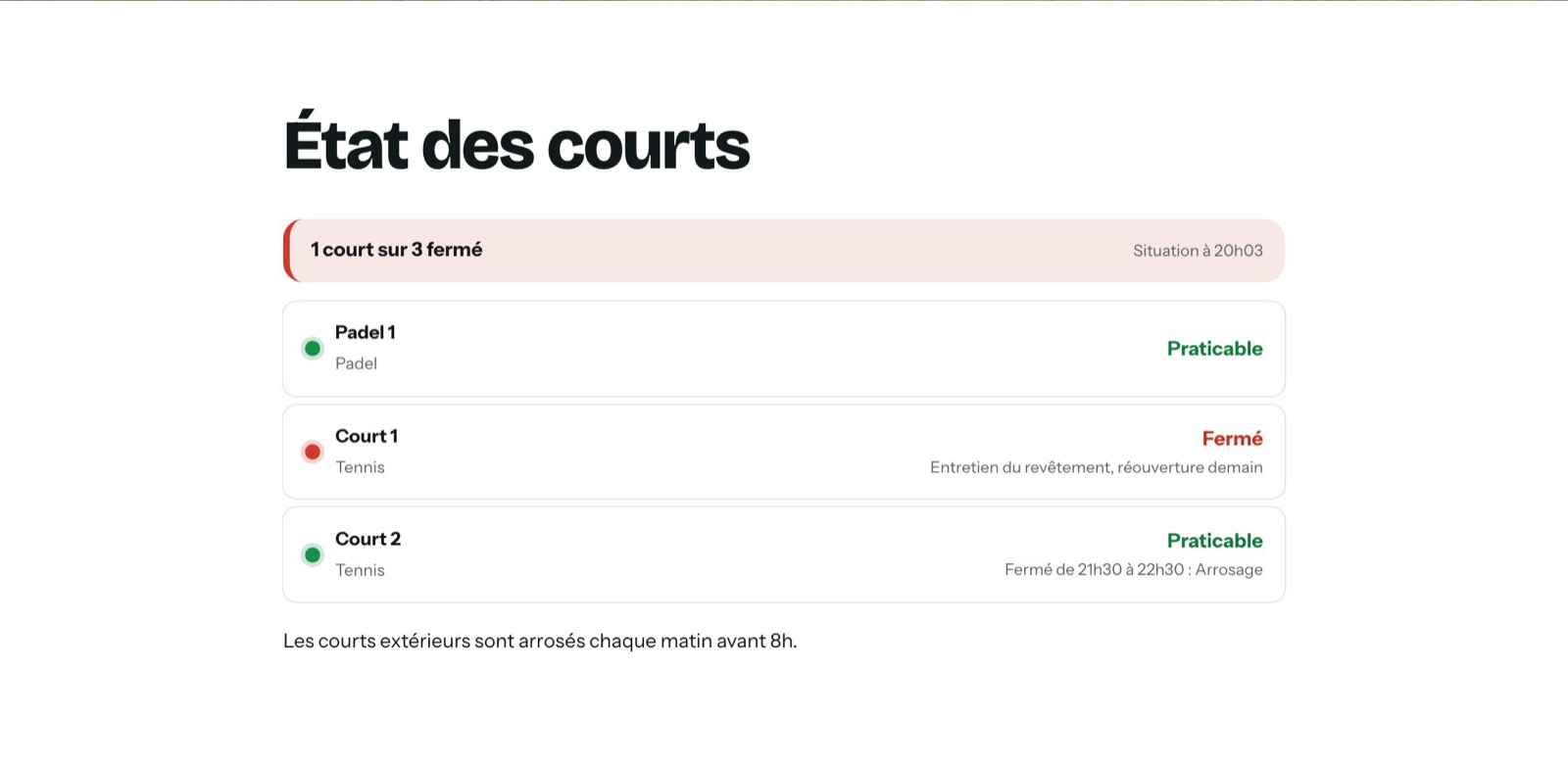
On the website: a closed court with its reason, a closure announced for later
You do not enter the status on the website: it comes from the court closures in the schedule.
- To close a court, block it in Plugin and enter a reason, for example “Maintenance” or “Rain, next update at 2 pm”. See the article Close courts.
- During the closure, the website shows the court as “Fermé”, with the reason and the reopening time if the closure ends during the day. Members cannot book this court.
- A closure planned for later in the day is announced under “Praticable”, for example “Fermé de 14h à 16h : Maintenance”.
- When the closure is deleted or over, the court becomes “Praticable” again.
There is nothing to publish: the website follows the schedule within two minutes at most. The “Situation à …” line shows the time of the last check.
In the block's panel, untick the courts you do not want to show, and use “Remarque permanente” for lasting information, for example the winter closure.
A closure with the “Release to members automatically” option is not a closure of the court: the court is held and then released to members. It does not appear as “Fermé” on the website.
Show a camera or external content
The “Caméra ou contenu externe” block displays on the page content provided by another service: the club's camera, a ranking, the weather, a form.
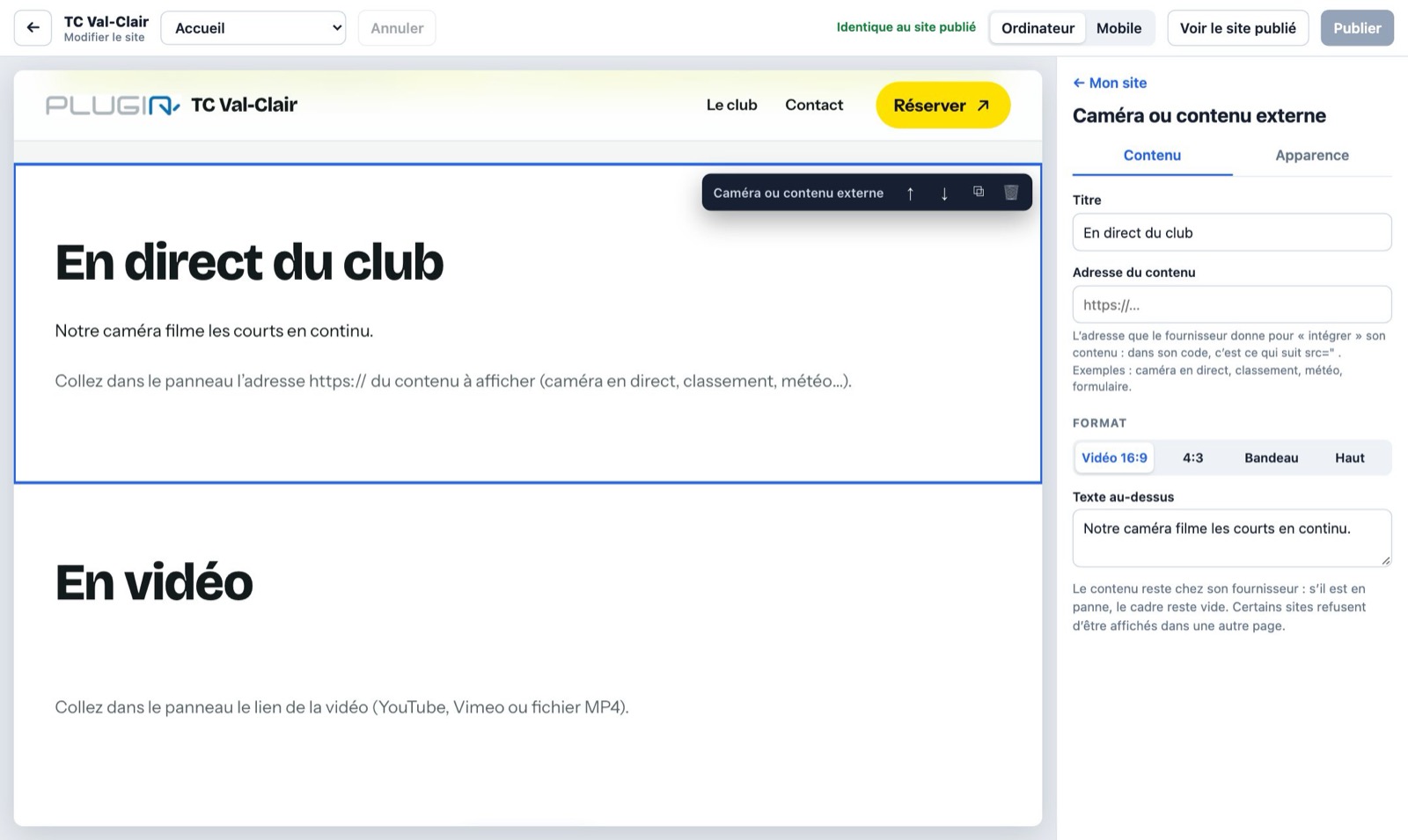
The block's panel: the content address and the frame format
- At the provider, look for the address offered to embed the content. In the code it gives, it is what follows src="https://reservation.tccolombier.ch/new/ai/tutoriels/ch23-site-internet/ .
- Paste this address into “Adresse du contenu”. It must start with https:// .
- Choose the frame format: “Vidéo 16:9”, “4:3”, “Bandeau” or “Haut”.
The content stays with its provider: if it is down, the frame stays empty. Some sites refuse to be displayed inside another page.
Add a video
Add the “Vidéo” block and paste into “Lien de la vidéo” the address of the video, copied from YouTube or Vimeo. The address of an online .mp4 file also works.
Show a slideshow of photos
The “Diaporama” block shows one photo at a time. Tap the photos to show: the number gives their order. The “+” button adds a photo from your computer or phone.
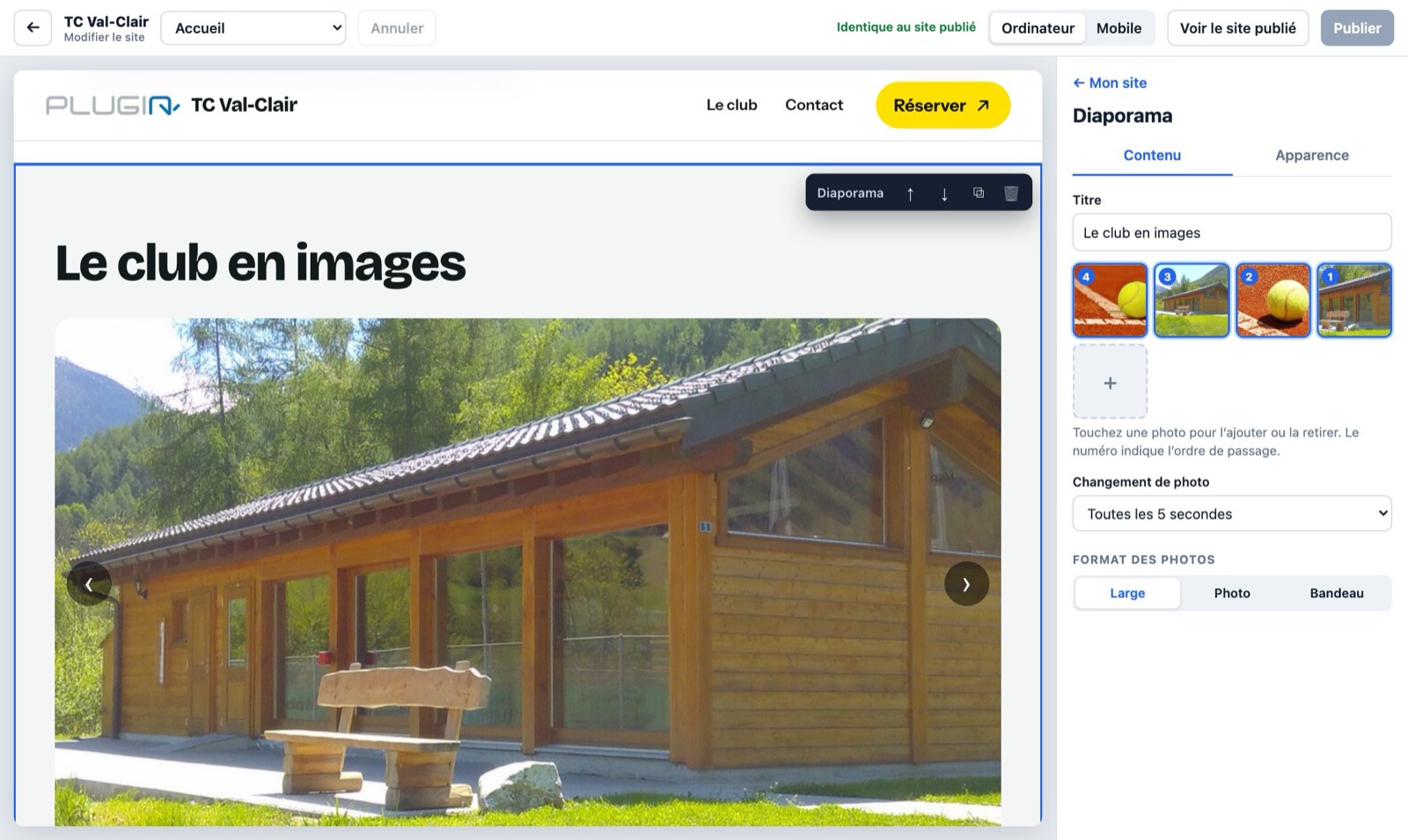
The chosen photos carry their order number
Under “Changement de photo”, choose the pace: every 3, 5 or 8 seconds, or “À la main seulement (flèches)”. Under “Format des photos”, choose “Large”, “Photo” or “Bandeau”.
Visitors change photo with the arrows or the dots, and by swiping on a phone. The slideshow pauses while the mouse is over the photo.
Choose the fonts
With no block selected, the “Mon site” panel offers the “Polices” section: one font for titles, one for text. “Celle du thème” keeps the font provided by the chosen theme.
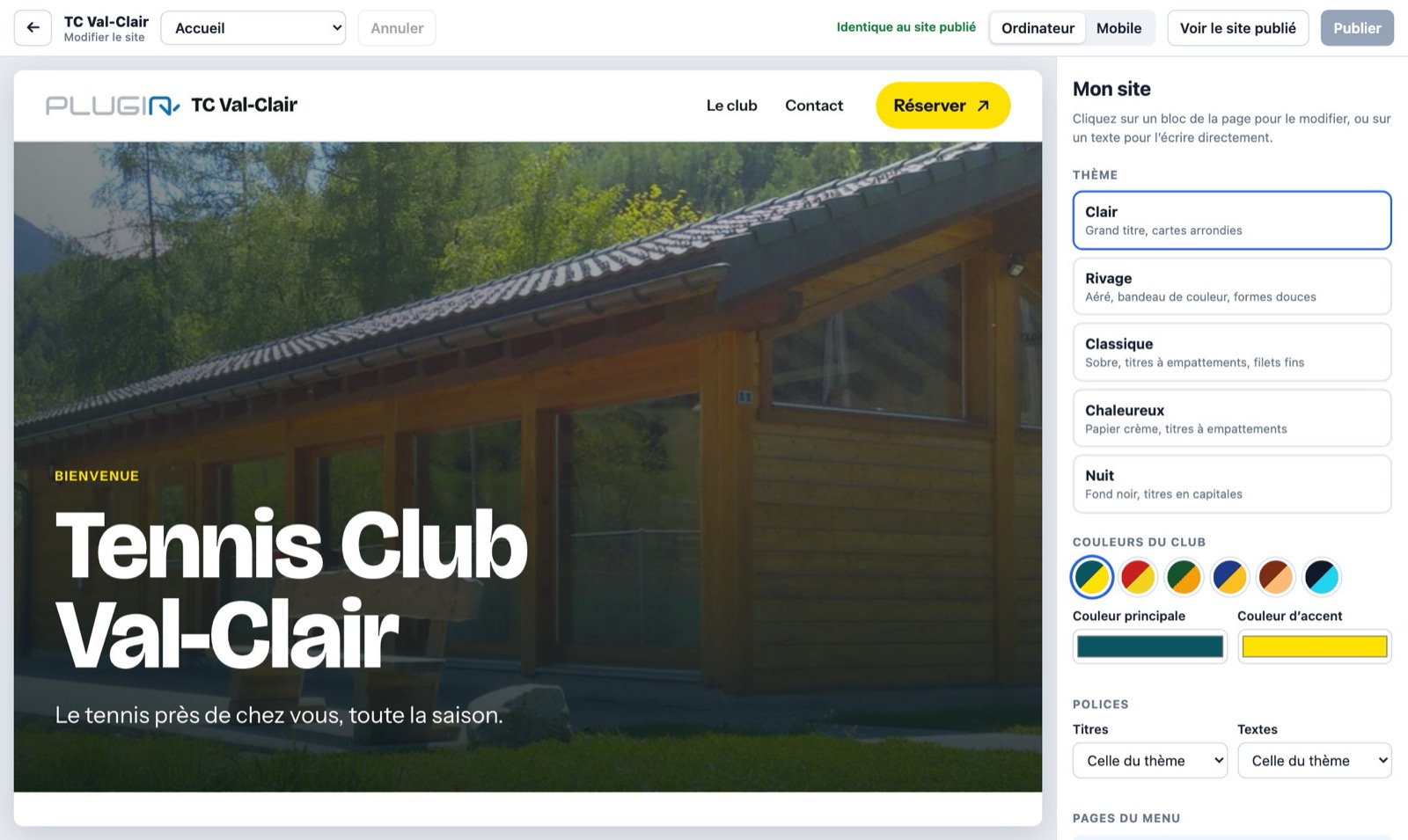
The “Polices” section of the “Mon site” panel
Sponsors: when a sponsor has a logo, in Plugin or added in the “Sponsors” block, the logo is displayed instead of the name.
Plugin.ch Tutorial — Club website